
Step 2: Canvas Assignment Setup & Launch
Use this page as Step 2: configure assignment launch for instructors and students.
Quick outcome
- Instructor configures one Canvas assignment as External Tool.
- Students launch from Canvas into Lab.Computer.
- Lab.Computer auto-syncs course and assignment details.
Before you start
Ensure Step 1 is complete: Canvas LTI 1.3 Integration Guide.
- Step 1 registration is complete.
- Organization is activated.
- No manual setup is needed in Lab.Computer.
1) Automatic sync
Canvas sends course and assignment details at launch. Lab.Computer creates or updates matching records automatically.
2) Configure Canvas assignment
In Canvas, create or edit an assignment and use External Tool settings for Lab.Computer. Keep all other settings per your course policy.
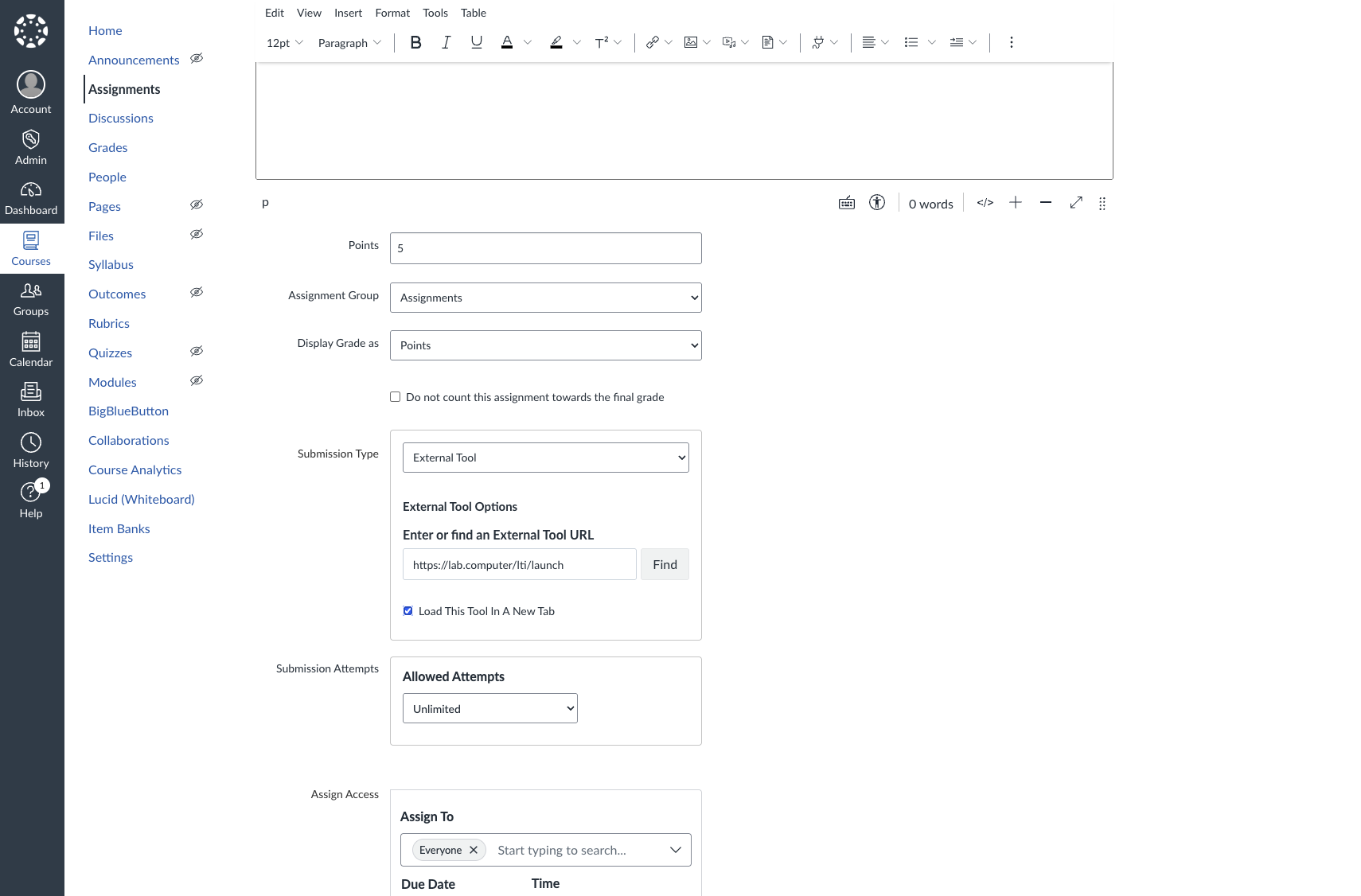
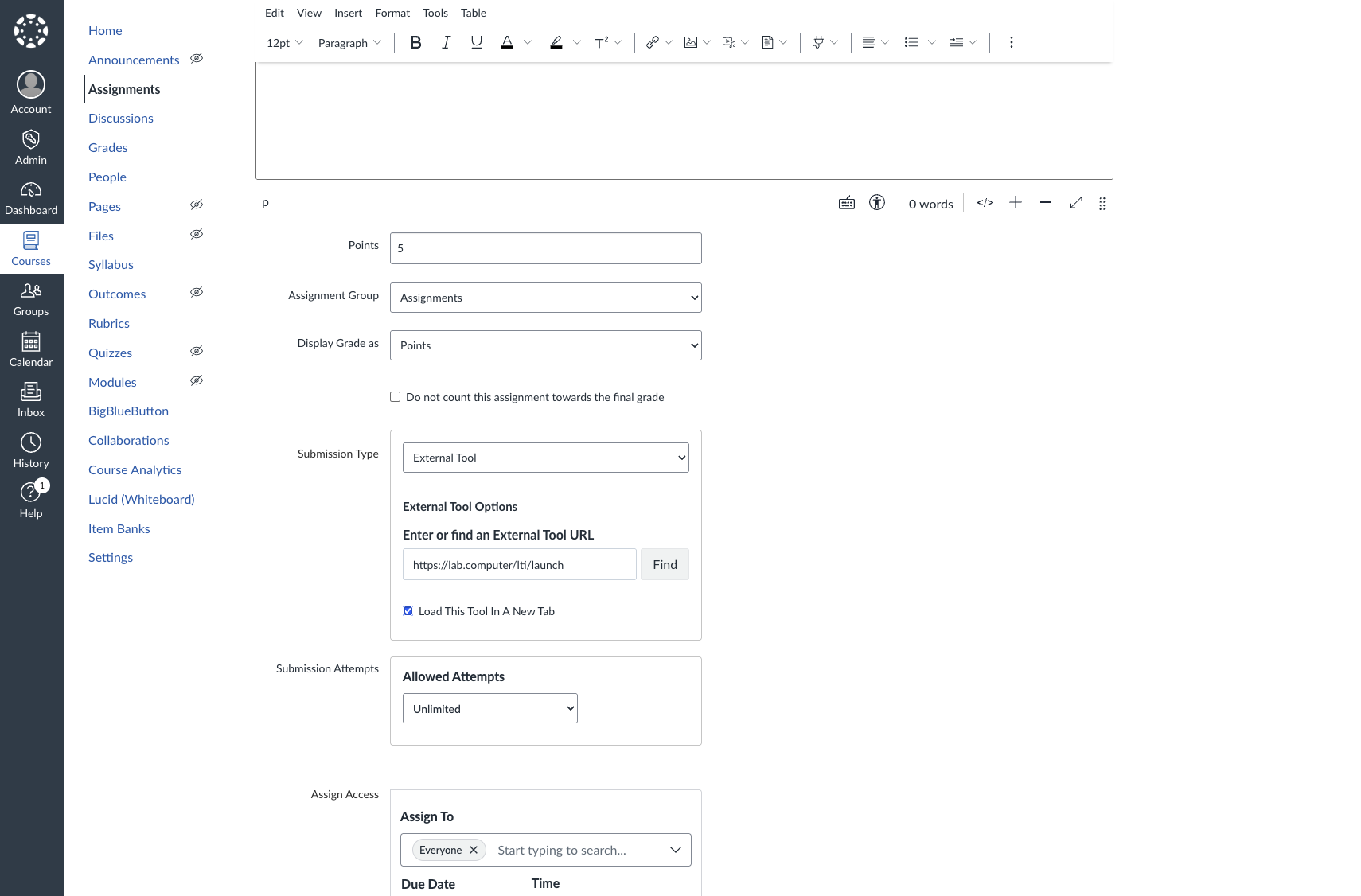
Required fields (from Canvas assignment settings)
- Set Submission Type to External Tool.
- In External Tool URL, use
https://lab.computer/lti/launch(or select the configured Lab.Computer app from Canvas). - Enable Load This Tool In A New Tab (recommended).
- Keep remaining assignment settings (points, attempts, due dates, assign-to rules, etc.) according to your standard Canvas course policy.
3) Student launch
Students open the assignment in Canvas and click Launch. They are redirected into Lab.Computer automatically.
If launch fails due to activation state, return to Step 1 and verify tenant activation status with Lab.Computer support.