
Canvas Integration Guide
Use this page as Step 1: register in Canvas and request activation.
Quick outcome
- Canvas app is registered for your school account.
- Your organization is activated by Lab.Computer support.
- You are ready for Step 2: assignment setup and launch.
Admin steps
1) Register using URL (recommended)
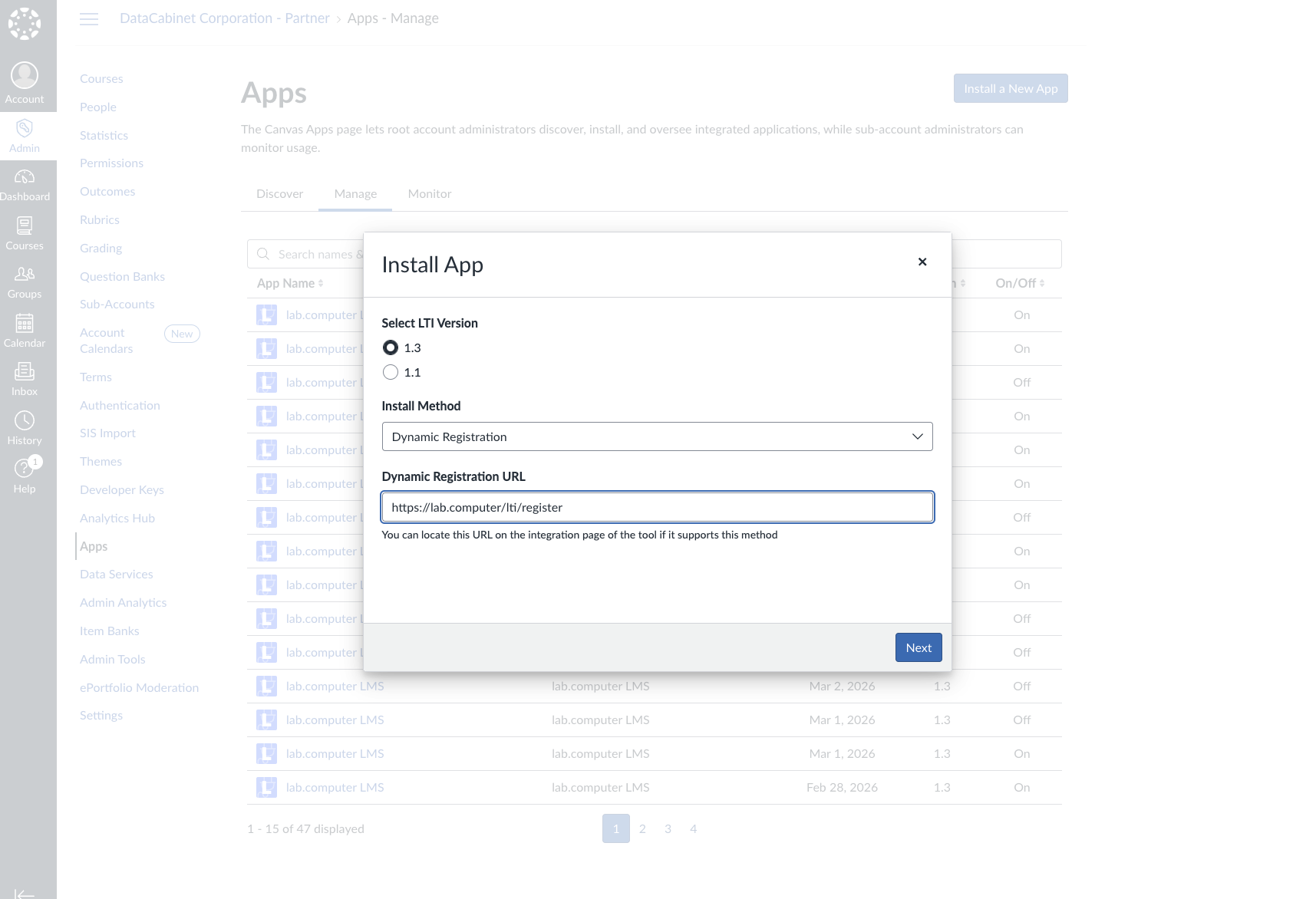
In Canvas Apps, click Install a New App, choose Dynamic Registration, and enter:
https://lab.computer/lti/registerReplace the domain with your school Lab.Computer URL.
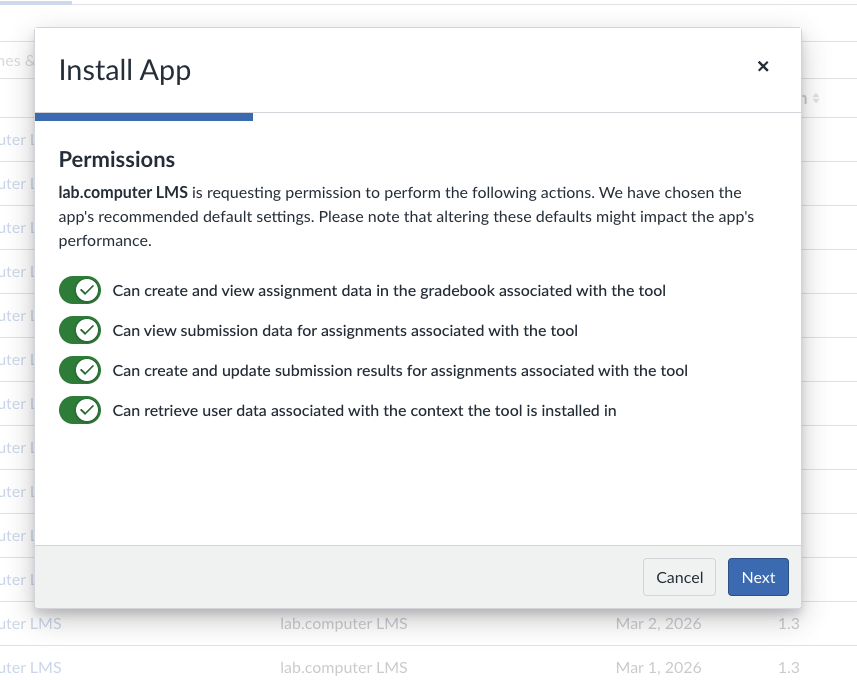
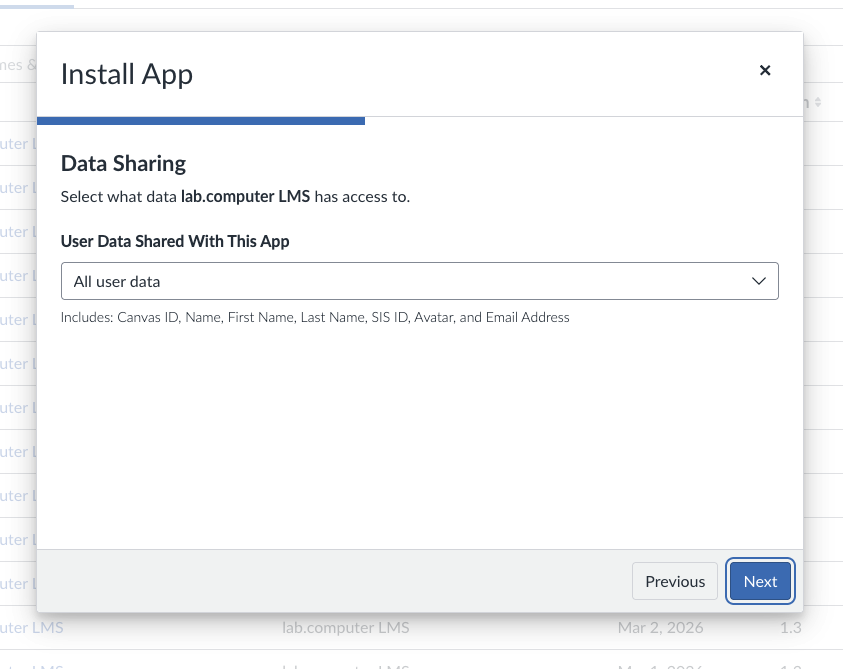
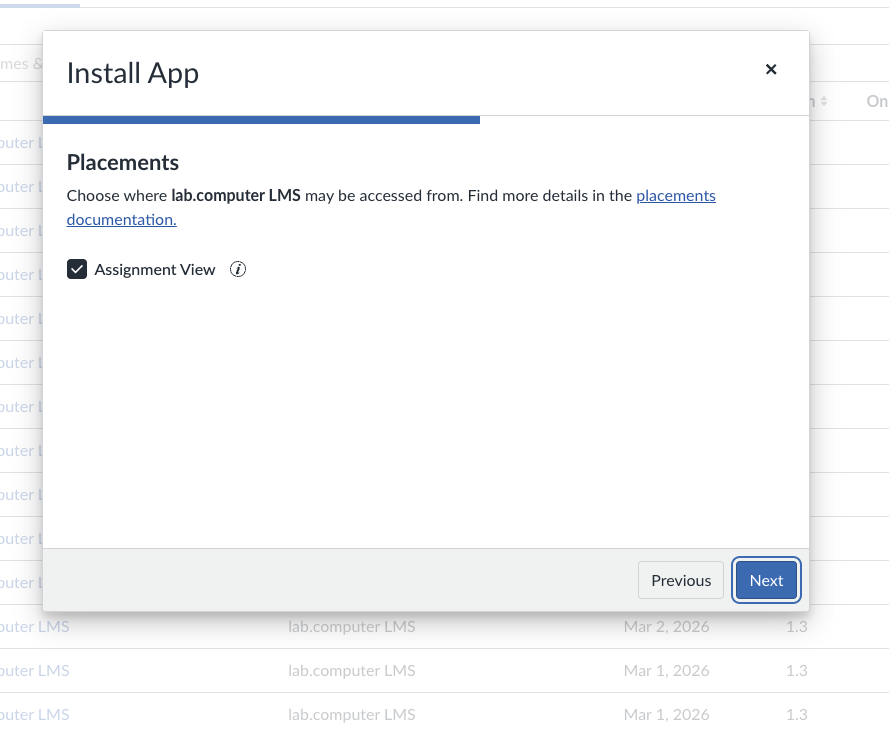
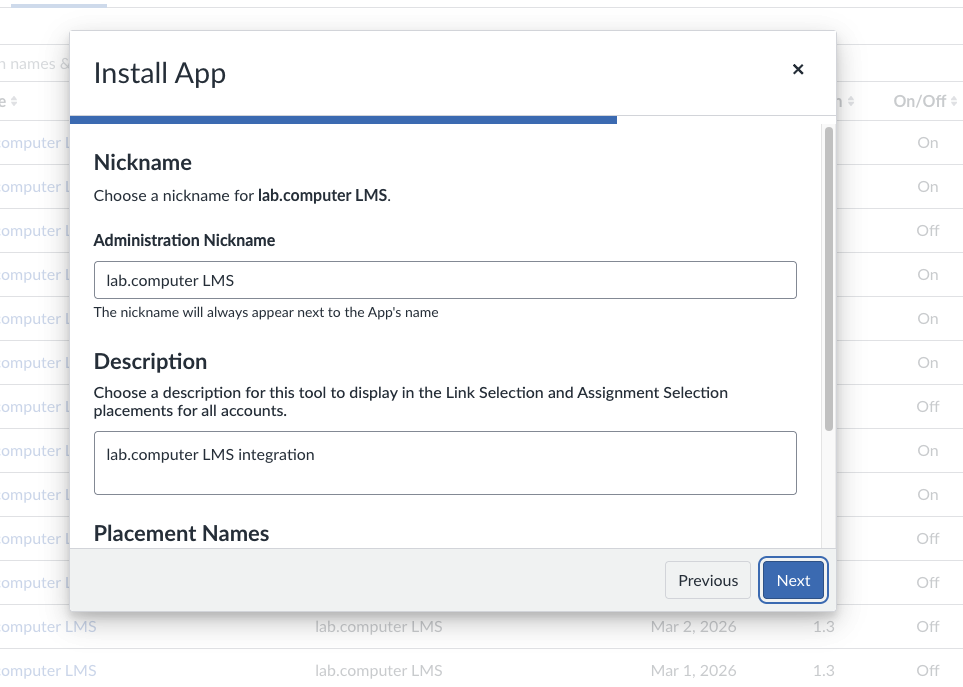
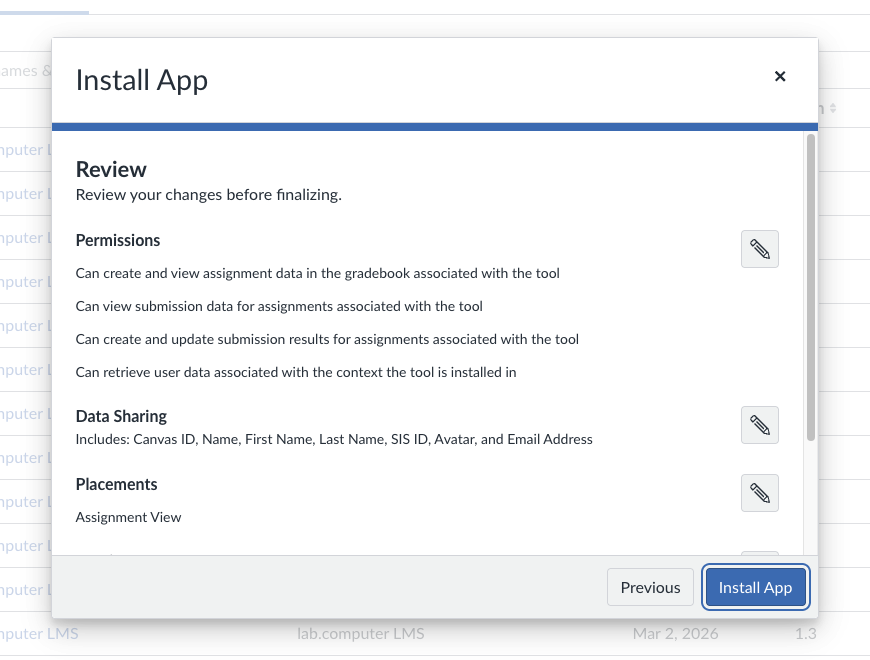
2) Alternative: search app and click Configure
Alternatively, admins can search for lab.computer LMS in Canvas Apps and click Configure to start the same registration/configuration wizard.
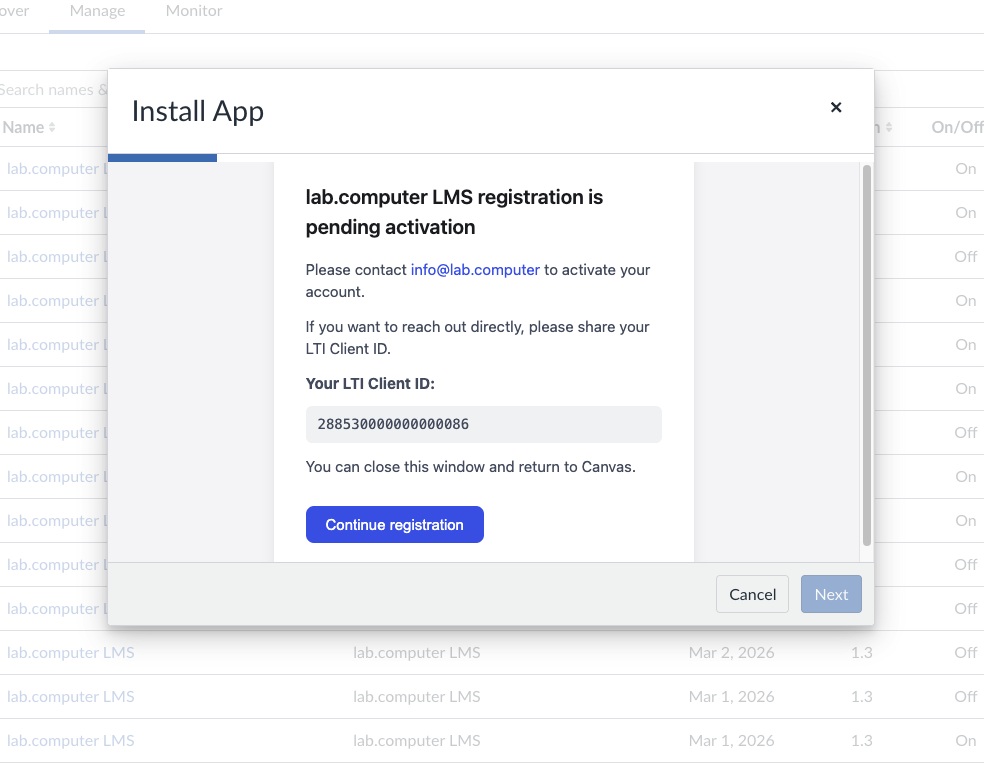
3) If pending activation: continue and email support
If your tenant is inactive (or this is a new registration), Canvas shows a pending activation screen. Click Continue registration to complete installation in Canvas.
- After completing registration, email [email protected] and share your LTI Client ID (shown on the pending activation screen) to request activation.
- After activation is confirmed, continue to Step 2.
Next step
Open Step 2: Canvas Assignment Setup & Launch
Grades in Canvas
Lab.Computer can send assignment grades back to the Canvas gradebook when grade sharing is enabled in Canvas app permissions. If grades are not syncing, check app permissions and assignment external tool settings.
Troubleshooting
- Registration error: run registration from Canvas using Dynamic Registration and URL ending with
/lti/register. - Organization not active: click Continue registration, then email [email protected] with your LTI Client ID.
- Grades not syncing: confirm permissions and External Tool assignment settings.