ProctorTrack: Instructor and Student Guide
This guide explains how to use ProctorTrack with proctored assignments in Lab.Computer-for both instructors (viewing the dashboard and tests) and students (onboarding and taking proctored exams).
Overview
- What is ProctorTrack? ProctorTrack is the remote proctoring service integrated with Lab.Computer. When an assignment has proctoring enabled, students take the exam under ProctorTrack’s monitoring.
- When is it used? Only for assignments with proctoring enabled. In the assessments list, those rows show a small lock icon in Status (hover for Proctoring (L#)) next to Draft or Released.
- Key ideas: Onboarding = one-time setup flow some institutions require before proctored exams. SSO links = Lab.Computer generates short-lived URLs that you copy/paste into your browser to open ProctorTrack.
- Important: If an SSO URL fails, generate a new link from Lab.Computer and try again immediately (SSO links can expire quickly).
Instructor workflow
1. Enabling proctoring when creating an assignment
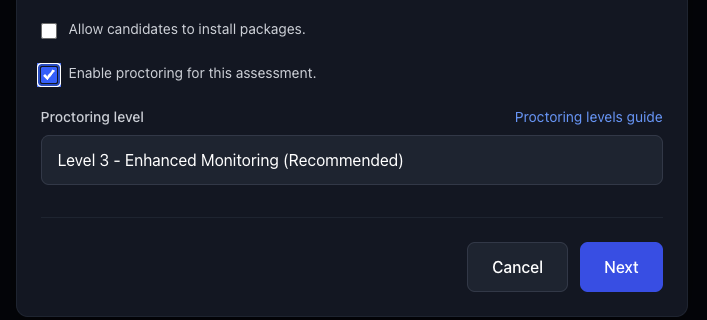
When creating or editing an assessment, check Enable proctoring for this assessment and choose a Proctoring level (for example, Level 3 – Enhanced Monitoring). When enabled, students may be required to complete onboarding (if your institution enforces it) before they can import or access the assignment. See the Proctoring levels guide for level details.
2. Recognizing proctored assignments
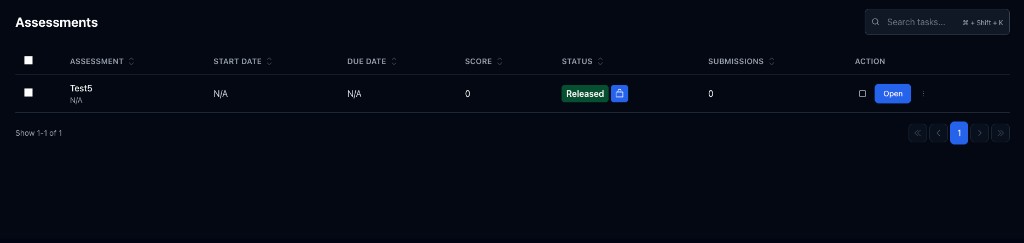
On the Assessments tab, proctored assessments show a blue lock in the Status column (hover the lock to see the proctoring level). Draft or Released appears below or beside it as usual.
3. Opening the ProctorTrack dashboard
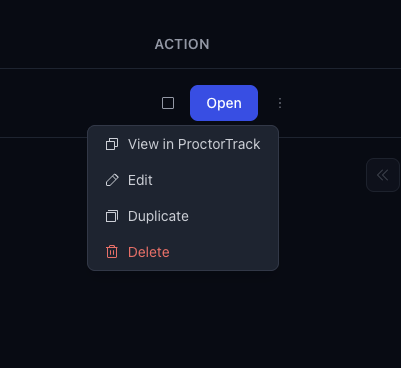
In the Action column, click the ⋮ (three dots) next to Open, then choose View in ProctorTrack. Lab.Computer will try to open ProctorTrack in a new tab. If your browser blocks pop-ups, Lab.Computer will copy an SSO URL to your clipboard (or show a manual-copy modal). Paste the URL into your browser to open the ProctorTrack dashboard or test review.
Student workflow
1. Recognizing proctored assignments
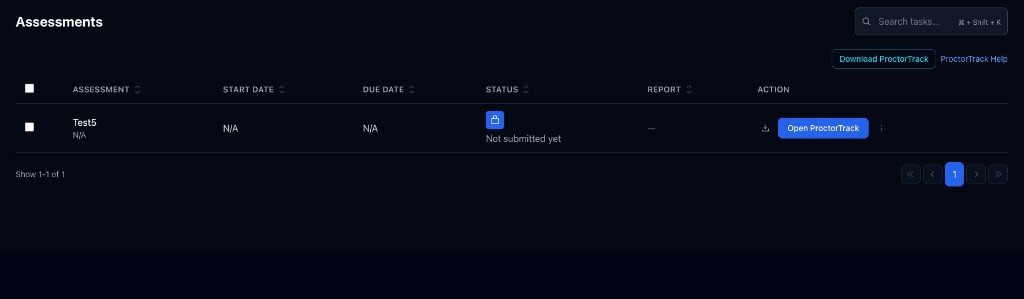
The Status column shows a lock for proctored assessments (hover for the level) and submission state (for example Not submitted yet). If onboarding is required for your institution, you’ll see an Onboarding Required state until you complete it. Use Download ProctorTrack (above the table) and Open ProctorTrack in the row action when you are ready.
2. Download ProctorTrack (recommended)
Use the Download ProctorTrack button above the table to get the installer or landing page before your exam. Install and validate your setup ahead of time (camera/mic permissions, system requirements, etc.).
3. One-time onboarding (when required)
Click Start Onboarding, then paste the copied URL into your browser. Complete ProctorTrack’s steps. Once done, the status updates to Onboarding Complete and you can import and open the proctored assignment.
If you still see Onboarding Required after finishing, refresh the page and try again. If the SSO link is expired, generate a new one.
4. Taking a proctored exam
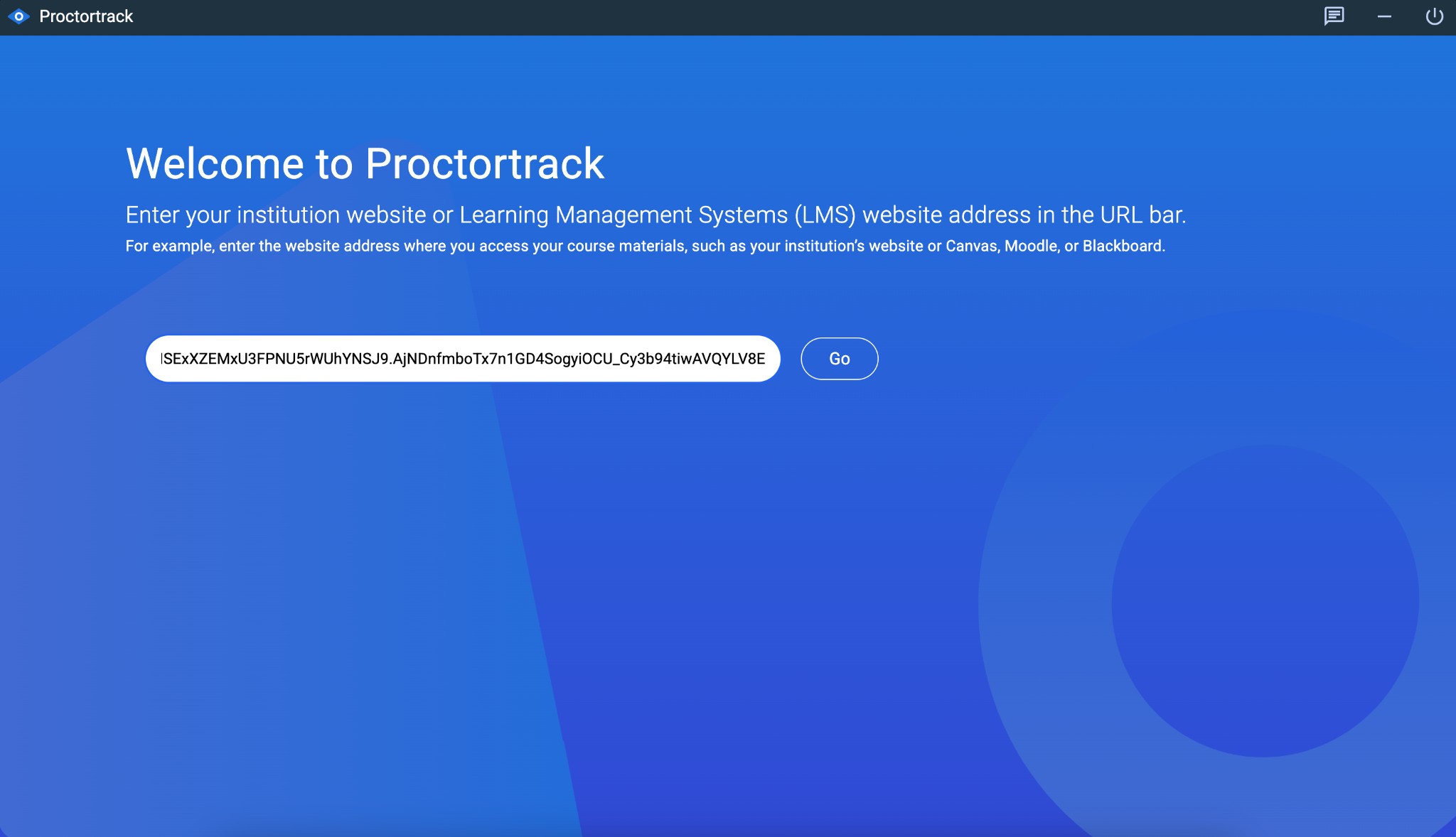
Click Open ProctorTrack for the assignment. Paste the copied URL into your browser. You may see the ProctorTrack welcome screen-if the token is already filled, click Go. Then use Go To Test on your exam in the Test List.

For proctoring levels (1–4), see the Proctoring Levels Guide. For official product documentation, refer to ProctorTrack (Verificient) materials provided to your organization.